> For the complete documentation index, see [llms.txt](https://docs.alkemi.ai/llms.txt). Markdown versions of documentation pages are available by appending `.md` to page URLs; this page is available as [Markdown](https://docs.alkemi.ai/documentation/getting-started/connect-your-data/connecting-databricks.md).
# Connecting Databricks
Connect your Databricks workspace to the Alkemi platform. Once connected, you can create and manage Data Products within Alkemi using your Databricks warehouse as the data source.
{% stepper %}
{% step %}
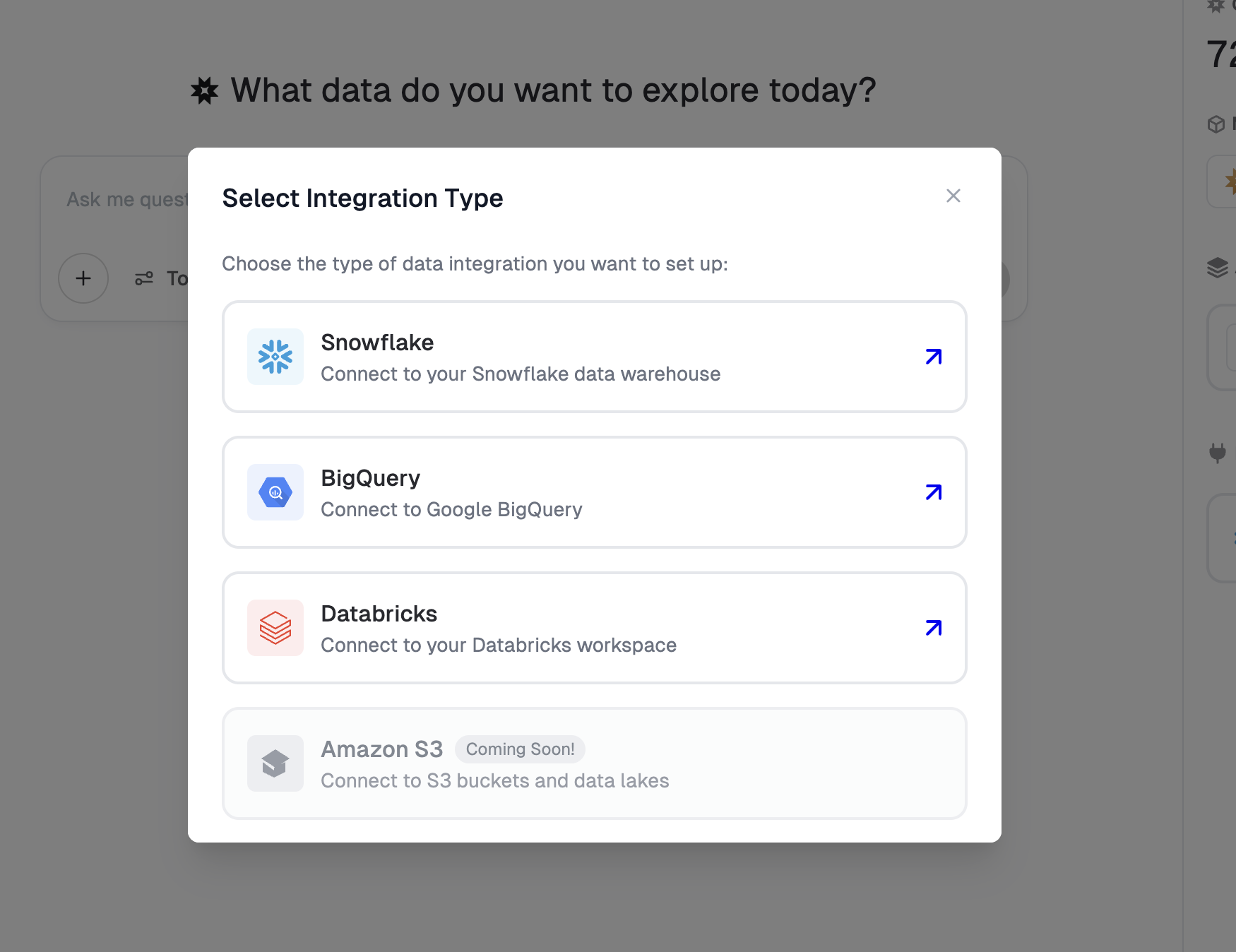
## Click +Add under integrations
Click the add button and select Databricks
{% endstep %}
{% step %}
## Input a Connection Name and your Databricks Workspace URL and HTTP Path
Input a name for your connection. Then In another tab, go to your account in Databricks and to obtain your Workspace URL and HTTP Path.
To find these, in Databricks navigate to **SQL Warehouses**, select the warehouse you want to connect to DataLab, and click on the **Connection Details** tab.
Copy Server hostname to your clipboard and paste into the Workspace URL field in DataLab. Then copy your HTTP Path for the warehouse and past into the HTTP Path field in DataLab.
{% endstep %}
{% step %}
## Create a Service Principal User
In another tab, go to your account in Databricks and create a Service Principal User. To do this, click on your user name in the upper right and select Settings.
Select **Identity and Access** and then click Manage under **Service principals.** Select **Add service principal** and click **Add new** in the modal. Assign your service principal a name and click **Add**.
You now have a new service principal user. Click into the new service principal to access connection details and to create a secret.
Click on the **Secrets** tab and then **Generate secret**. Assign a lifetime value for the secret and click **Generate**.
Copy the secret to your clipboard, navigate back over to DataLab and paste the value into the Client Secret field in the Databricks integration modal. Now do the same for the Client ID.
{% endstep %}
{% step %}
## Grant Permissions to your Service Principal User
For this next step you can connect to Databricks using your preferred SQL client or use the SQL Editor within databricks.
Run the following SQL commands to grant your service principal user the necessary permissions. Replace `` , `` , and `` with your actual values:
```sql
GRANT USE CATALOG ON CATALOG TO ``;
GRANT USE SCHEMA ON SCHEMA . TO ``;
GRANT SELECT ON SCHEMA . TO ``;
GRANT CREATE TABLE ON SCHEMA . TO ``;
```
{% endstep %}
{% step %}
## Test and Save your connection
That’s it. Now you can create Data Products within Alkemi using your connect Databricks warehouse!
{% endstep %}
{% endstepper %}